General
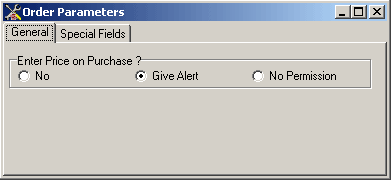
Figure 15 Order Parameters / General
Ask Order Price Table
When Yes is selected, a price table will be opened in the order
form according to the prices defined in the inventory card.
When No is selected, a value must be entered manually in the unit
price field of the order form.
Automatic Price Insert from Card
When Yes is selected, the first price defined in the price screen
of the inventory will appear as the default value in the order form unit
price field.
When No is selected, a value must be entered manually in the unit
price field of the order form.
Purchase Control on Delivery Note/Invoice Entry (Purchasing)
When By Order is selected, delivery note and invoice entry operations
without an order will not be allowed.
When Cannot Exceed Order is selected, delivery note and invoice
entry operations without an order will not be allowed. The quantity in
the delivery note and invoice cannot exceed the order quantity.
Purchase Control on Delivery Note/Invoice
Entry (Sales)
When By Order is selected, issue of delivery note and invoice without
an order will not be allowed.
When Cannot Exceed Order is selected, issue of delivery note and
invoice entry operations without an order will not be allowed. The quantity
in the delivery note and invoice cannot exceed the order quantity.
Price/Quantity/Account Type on Purchase
When No is selected, quantity and price will be entered manually.
When Price = S1*S2*S3 is selected,
[it] will calculate the multiplication of the desired values as the price
in the receipt detail line of the special fields tab.
When Quantity = S1*S2*S3*S4 is selected, [it] will calculate the
multiplication of the desired values as the quantity in the receipt detail
line of the special fields tab.
Special Fields
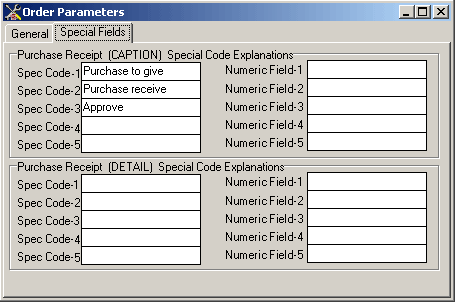
Figure 16 Order Parameters / Special Fields
Order Form (CAPTION) Special Code Explanations
5 numerical and 5 alphabetical special fields can be defined in the caption
section of the order form. (Ordered By, Order Received By, etc.)
Order Form (DETAIL) Special Code Explanations
5 numerical and 5 alphabetical special fields can be defined in the detail
section of the order form. (Receipt No, Operation No, etc.)
Inventory Parameters
General
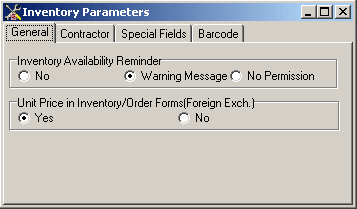
Figure 17 Inventory Parameters
/ General
Inventory Availability Reminder
When Warning Message is selected, and when an item that is not
in the inventory is attempted to be sent, the program will display a warning
as “You Are Sending An Item That Does Not Exist”, and will let the operation
continue.
When No Permission is selected, and when an item that is not in
the inventory is attempted to be sent, the program will display a warning
and will not allow the operation to be continued.
Default Price on Warehouse Receipt
We can designate the price type regarding the inventory, which we desire
to automatically appear in the “unit price” field of the warehouse receipt.
Average Unit Price based on Warehouse?
When Yes is selected, it will enable the calculation of the average
inventory unit prices on warehouse basis.
When No is selected, only one average unit price will be calculated
for the inventory.
Ask for Current Account Code for all Receipts?
When Yes is selected, it will require to have account code to be
entered into all the inventory status receipts.
When No is selected, it will not be required to enter the account
code in the Consumption, Loss, Warehouse, Count and inventory status receipts.
Document No. Control
When selected in the sales, [it] will not allow having the delivery notes
and invoices that have the same document number entered.
Document No. Sorting
When Yes is selected, the delivery notes and invoices will automatically
be numbered incrementally.
When Serial Sequence is selected, the delivery note and invoice
numbers will be listed according to series, as defined, in the “document
no length” field. (A Series, B Series)
Auto Barcode-Numbering on Inventory Cards?
When Yes is selected, the barcode number in the Invoice Card /
General screen will automatically be sequenced incrementally.
Currency Based Prices on Inventory Cards
When Yes is selected, the currency type of the inventory price
will be defined in the 1st Price Explanation field in the Invoice Card
/ Price screen. The purchase and sale prices must be entered in defined
currency type. ($, €, etc.)
When Currency+VAT is selected, the currency type of the inventory
price will be defined in the 1st Price Explanation field in the Invoice
Card / Price screen. The purchase and sale prices must be entered VAT
inclusive in the defined currency type.
Automatically Change the Delivery Note When the Invoice is Changed?
When Yes is selected, changes in the invoice caption and detail
information will automatically be reflected on the delivery note receipt.
(Receipt Date, Account, Unit Price etc.)
When No is selected, changes in the invoice caption and detail
information will not be reflected on the delivery note receipt. (Receipt
Date, Account, Unit Price etc.)
Contractor
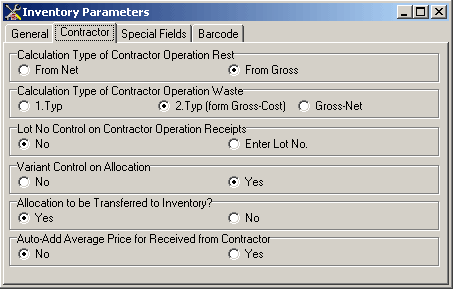
Figure 18 Inventory Parameters / Contractor
Calculation Type of Contractor Operation
Rest
It determines according to what the remainder will be calculated in monitoring
the Contractor operations.
When selected from net received, [it] will be calculated as sent - net
received = remainder.
When selected from gross received, [it] will be calculated as sent - gross
received = remainder.
Calculation Type of Contractor Operation
Waste
When 1. type is selected, Waste = ((Gross Quantity - Net) / Gross) * 100
When 2. type is selected, Waste = ((Sent - Net - Return) * 100) / Sent
When Gross - Net is selected, Waste = ((Sent - Net - Return) * 100) / Sent - Return
Lot No. Control on Contractor Operation
Receipts
When Enter Lot No (as a must) is selected, party no must be entered
in the inventory receipts. Moving to the next field in the inventory receipt
will not be allowed unless the party no is written.
Variant Control on Allocation
When Yes is selected, [it] performs variant control at the Order
Allocation entry.
Allocation to be Transferred to Inventory?
When Yes is selected, the allocations in the orders will automatically
be transferred to the inventory receipt during the transfer from the order
to the inventory operation.
When No is selected, the allocations must be entered manually after
the transfer operation is done.
Special Fields
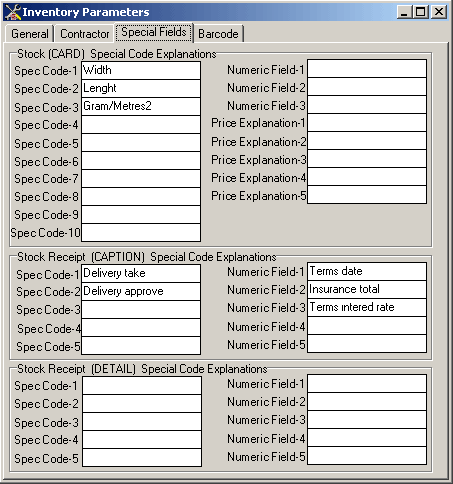
Figure 19 Inventory Parameters /
Special Fields
Inventory (CARD) Special Code Explanations
3 different numerical, 10 different alphanumerical special codes regarding
the inventory card can be defined in this field. (Width, Length etc.)
Inventory Receipt (CAPTION) Special Code Explanations
5 different numerical, 5 different alphanumerical special codes regarding
the inventory receipt section can be defined in this field. (Transportation
Cost etc.)
Inventory Receipt (DETAIL) Special Code Explanations
5 different numerical, 5 different alphanumerical special codes regarding
the inventory receipt detail section can be defined in this field. (Row
Width, Receipt No etc.)
Shipment Parameters
Foreign Language
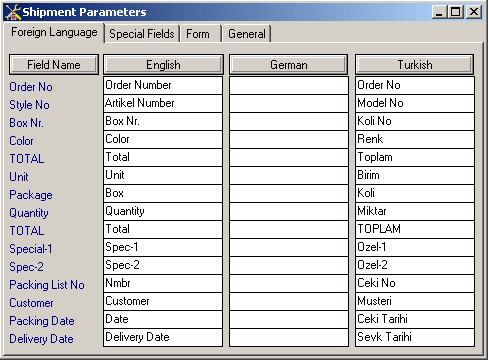
Figure 20 Shipment Parameters / Foreign Language
It is the screen on which we can define the original names of the fields in the packing list screen, which we desire to appear in the packing list printout. (English, German etc.)
Special Field
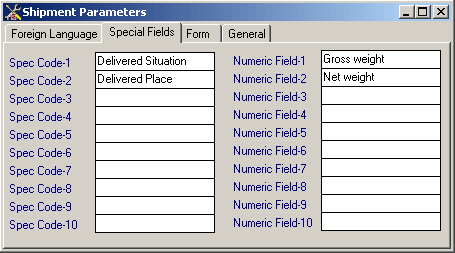
Figure 21 Shipment Parameter
/ Special Fields
10 different numerical and 10 different alphanumerical special fields
are defined in the caption section of the packing list. (Place of delivery,
gross weight etc.)
Cost Parameters
Real Cost
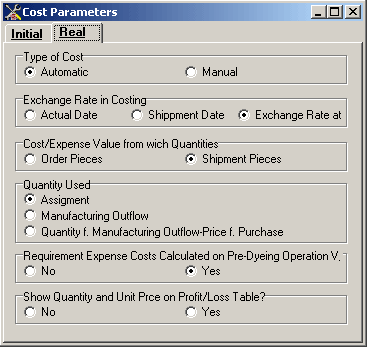
Figure 22 Cost Parameters /
Real
Type of Cost
When Automatic is selected, the program automatically calculates
the realized cost of the order.
When Manual is selected, the user manually calculates the costs.
Exchange Rate in Costing
When Date is selected, the rate entered for the date the cost is
calculated will be taken as the basis in the foreign currency calculations.
When Shipment Date is selected, the rate entered for the shipment
date will be taken as the basis in the foreign currency calculations.
When Exchange Rate in Order is selected, the rate entered in the
Order Entry / Detailed Information screen will be taken as the basis in
the foreign currency calculation.
Cost/Expense Value from which Quantities
When Order Quantities is selected, order quantities will be taken
as the basis in Cost / Sales calculations.
When Shipping Quantity is selected, shipping quantities will be
taken in Cost / Sales calculations.
Quantity Used
When From Allocation is selected, the quantities on the Purchasing
(Purchase Dispatch) receipt will be taken as the basis in calculating
the Real Cost.
When Sent to Manufacturing is selected, [the quantities] from the
Sent to Manufacturing will be taken in calculating the Real Cost.
Initial Cost
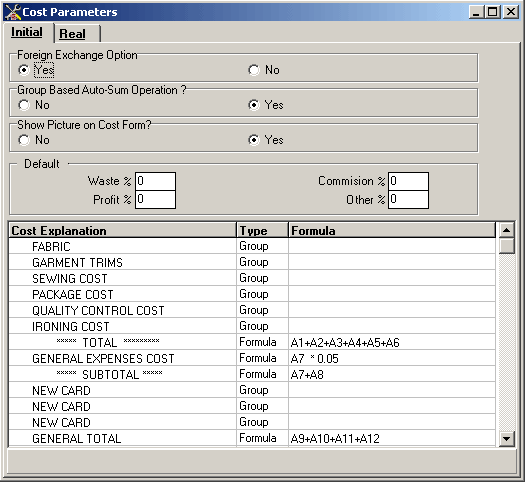
Figure 23 Cost Parameters /
Initial
Foreign Exchange Option
When Yes is selected, the initial cost operations will be displayed
on foreign currency basis.
When No is selected, the initial cost operations will be displayed
on Turkish Lira basis.
Current Account Parameters
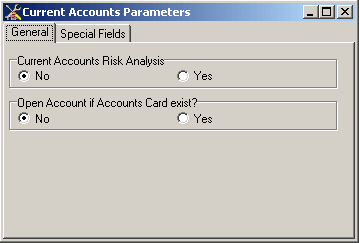
Figure 24 Current Account Parameters
/ General
Current Accounts Risk Analysis
If Yes is selected, a warning saying that the risk limit is exceeded
will be given when an operation is done in excess of the Risk Limit stated
in the Accounts Cards / General screen.
Open Account if Accounts Card exists?
When Yes is selected, it will automatically open an account in
the accounting from the account code that will have been defined in the
“Accounting Counter” in the Accounts Card / General screen.
Special Fields
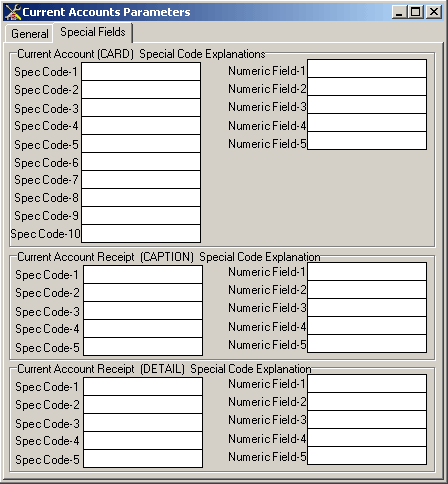
Figure 25 Current Account Parameters
/ Special Field
Current Account (CARD) Special
Code Explanations
You can define 10 different alphanumerical and 5 different numerical special
field captions regarding the Current Accounts Card, in this field. The
special field captions you will have defined will automatically appear
in the Accounts Card / Special screen.
Current Account Receipt (CAPTION) Special Code Explanation
You can define 5 different numerical and 5 different alphanumerical special
field captions regarding the Current Accounts Receipt caption section,
in this field. The special field captions you will have defined will automatically
appear in the Current Accounts Receipt caption section.
Accounts (DETAIL) Special Code Explanations
You can define 5 different numerical and 5 different alphanumerical
special field captions regarding the Current Accounts Receipt detail section,
in this field. The special field captions you will have defined will automatically
appear in the Current Accounts Receipt detail section.
