Inventory Cards
General definitions of the inventories to be followed is made in this section. Status, in / out processes and sales processes of the defined inventories on general basis could be followed.
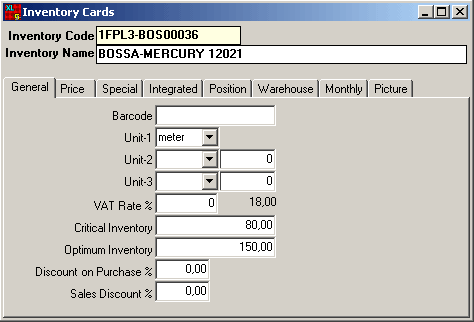
Figure 1 Inventory Card
Inventory Code
Alphanumeric and numeric characters in relation to the defined inventory
are entered into this field. Defined codes facilitate to follow any type
of inventory. Therefore, we can create the inventory codes by groupings.
(product group, type, properties etc.)
| T | TRIMS |
| TBUT | BUTTONS |
| TBUTBB | Bar Buttons |
| TBUTBB16 | 16 Size Bar Button |
| TBUTBB18 | 18 Size Bar Button |
| TBUTBB24 | 24 Size Bar Button |
| TBUTMB | Metal Buttons |
| TBUTMT16 | 16 Size Metal Button |
| TBUTMT18 | 18 Size Metal Button |
| TL | LABELS |
| TLSL | Size Label |
| TLSLFL | Fila Size Label |
| TLSLNK | Nike Size Label |
| TLFL | Firm Label |
| TLFLAD | Adidas Firm Label |
| TLFLNK | Nike Firm Label |
| Y | YARNS |
| YKY | Karde Yarns |
| YKY201 | 20/1 Karde Yarn |
| YKY301 | 30/1 Karde Yarn |
| YCC | Combed Cotton Yarns |
| YCC201 | 20/1 Combed Cotton Yarns |
| YCC301 | 30/1 Combed Cotton Yarns |
As shown in the above example, the first group expresses the (TBUT, Trim
Button) product group, the second group expresses the (TBUTBB, Bar Buttons)
product types and the third group expresses the (TBUTBB16, 16 Size Bar
Button) product properties. If this kind of coding is adapted, the inventory
expressed can be understood easily by looking at the inventory codes.
Such kind of coding facilitates the receipt of inventory reports.
It should be paid attention that no space should be left between the characters, while determining the inventory codes.
Inventory Name
Name of the inventory to be defined is entered into this field.
Inventory Card Generals
This is the field, where general definitions such as barcode, unit, VAT, discount etc. in relation to the inventory are made.
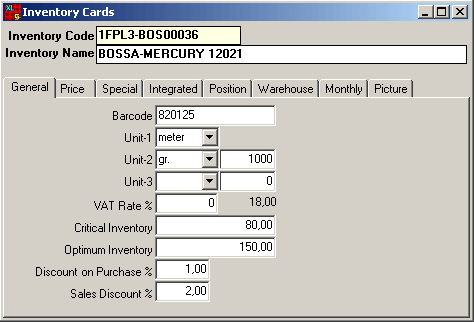
Figure 2 Inventory Card / Generals Window
Barcode
If the defined inventory is to be followed by the barcode, relevant barcode
number is entered into this field. By means of the designated barcode
number, inventory in/out operations are executed by the barcode readers.
Unit
The first unit that the inventory follow up will be made with is selected
among the unit list (quantity, kg., meter etc.) displayed by pressing
on the OK button. There are three different unit fields in this
section. More than one unit can be used. For example, if kg. is entered
into the unit 1 field, gr. should be entered into the unit 2 field. Its
coefficient expresses the rate of second unit to the first. When the first
unit is entered as kg., and the second as gr., its coefficient should
be 1000.
Values at the unit list are defined at the SentezXL
Setup Software/General Program Parameters
VAT Rate
VAT rate concerning the inventory is determined in this field. VAT rates
in this field are defined at the SentezXL Setup
Software/General Program. The first VAT rate defined in this field
is displayed as default on the card.
Critical Inventory
The least amount of inventory that should be in our warehouse is entered into this field.
Optimum Inventory
The optimum amount of inventory that should be in our warehouse is entered into this field.
 |
In the light of the definitions at the Critical and Optimum Inventory fields, Inventory Requirement Reports can be taken. |
Purchasing Discount
Discount rate applied at the purchase of the goods is entered into this field.
Sales Discount
Discount rate applied at the sales of the goods is entered into this field.
Price Definition at the Inventory Card
Five different purchase and sale price concerning the inventories can be defined in this section.
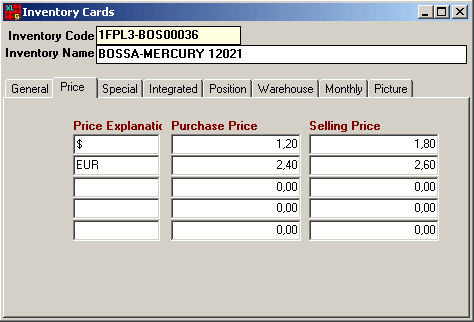
Figure 3 Inventory Card / Price Window
Explanation of the price to be defined is
entered into the Price Explanation field (purchase, sales, wholesale,
retail, customer etc.). These definitions are made from the SentezXL
Setup Software/InventoryParameters section. They can also be defined
on the card.
Whichever is selected among the 5 price fields determined in the current
account cards, unit prices defined in the inventory cards are displayed
as default according to the current account that the order is coming from
or according to the current account that the good is being sold.
For example, if 5 different prices are defined for 30/1 Karde Suprem,
and if 3 prices are valid for the current account, from which the order
will be given, purchasing unit price at 3 different price fields in the
inventory card is displayed as default on the order receipt.
Purchasing and sales prices of the inventory are entered into the Purchasing
and Sales Price section.
|
If the current account codes are defined in the price explanation field, prices in this field are automatically displayed on the inventory receipt when any operation concerning the defined current account is executed. |
Inventory Card Special
Fields
This is the field, on which additional explanations that are necessary
to take place on the inventory card are defined. Special fields, in which
ten different alphanumeric and three different numeric values concerning
the inventory card can be defined.
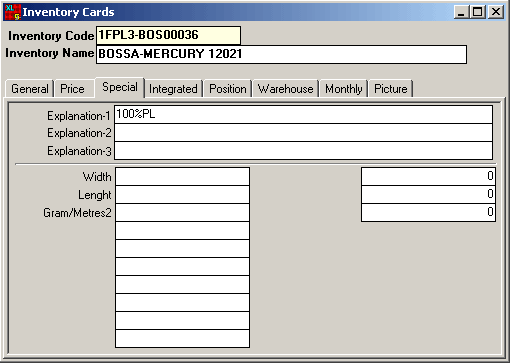
Figure 4 Inventory Card / Specials Window
Explanations and special code captions are defined in the SentezXL Setup Software / Inventory Parameters section.
|
Special fields defined in the special window are displayed automatically at the report filters. Report can be taken by making limitations on the required fields at the filters. |
Inventory Card Integrated Definitions
Relevant ledger account code concerning the inventory is entered. If the
relevant ledger account code concerning the introduced inventory is entered
and if the program works in integration with the SentezExcellent,
integration to the relevant accounts is executed by the program in the
ledger module, as the inventory transactions are processed.
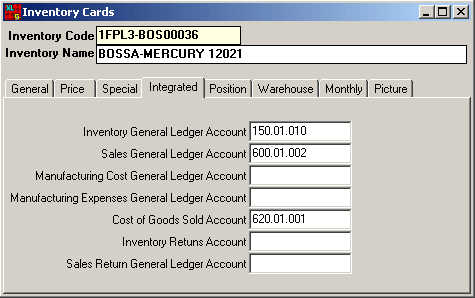
Figure 5 Inventory Card / Integrated Window
Inventory Card Status
Details
Inventory status of the central
and other warehouses, total in / out quantities and amounts, order operations,
real and actual Inventory quantities can be followed in this window.
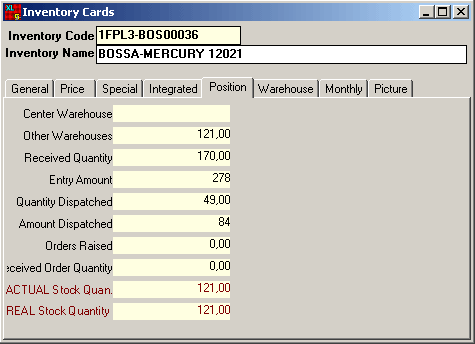
Figure 6 Inventory Card/Status Window
|
As the relevant inventory changes, the relevant information is reflected automatically into the fields at the status window. These fields cannot be changed. |
Inventory Card Warehouse
Info
In/out quantities of the relevant inventory to/from the warehouse, total
exit quantity and remaining Inventory on the basis of warehouses can be
followed in this window.
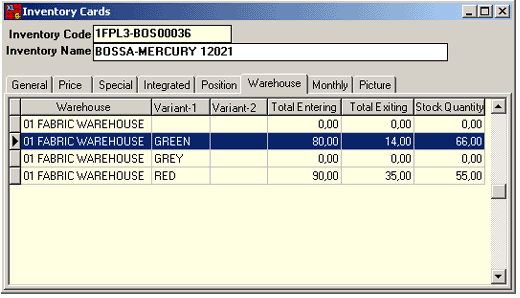
Figure 7 Inventory Card / Warehouse Window
|
As the relevant inventory changes, the relevant information is reflected automatically into the fields at the status window. These fields cannot be changed. |
Inventory Card Monthly
Info
Monthly distributions of the total purchases and sales in quantity and
amount are followed in this section.
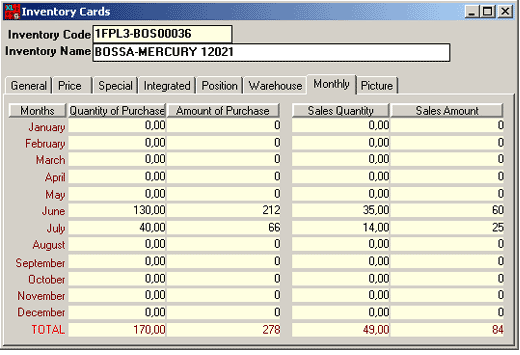
Figure 8 Inventory Card / Monthly Window
 |
Quantities and amounts of the monthly purchases and sales on this screen display the quantities and amounts of the relevant month only. It does not display the take over of the previous month. |
|
As the relevant inventory changes, the relevant information is reflected automatically into the fields at the status window. These fields cannot be changed. |
Picture Definition in
the Inventory Card
If the picture of the introduced inventory is recorded, they are displayed
in this section. In order the picture to be displayed on the inventory
card, the picture must exist in the Picture index, which is below the
SentezXL Program index. Furthermore, inventory code should be entered
after writing S to the beginning of the picture name.
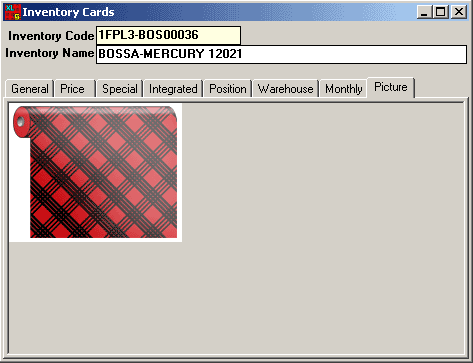
Figure 9 Inventory Card / Picture Window
Inventory Card Delete Operation
If deletion will be executed on a Current Account Card that was defined beforehand, current account to be deleted is selected among the displayed list by either pressing on the F9 key or clicking on the list button. Alternatively, current account code to be deleted can be entered directly.
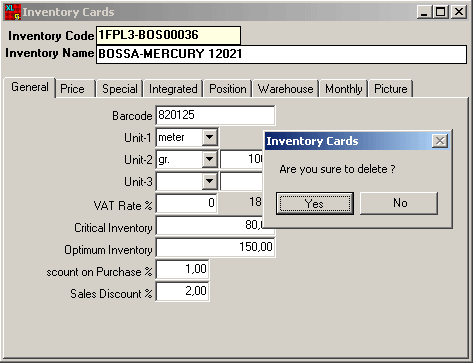
Figure 10 Inventory Card Delete
If the F6 key is pressed or the delete button is clicked after the current account information is displayed, “Are You Sure?” to delete warning is displayed. If “Yes” option is selected, delete operation is executed.
If the code of an inventory defined beforehand is required to change, the relevant inventory is selected by either pressing on the F9 key or clicking on the list button in the Inventory Code field. Inventory Code can be entered directly as well.
After displaying the inventory details on the screen, Inventory Code Change (F8) is selected from the menu displayed by right clicking on the screen.
Inventory Code Change window is displayed on the screen.
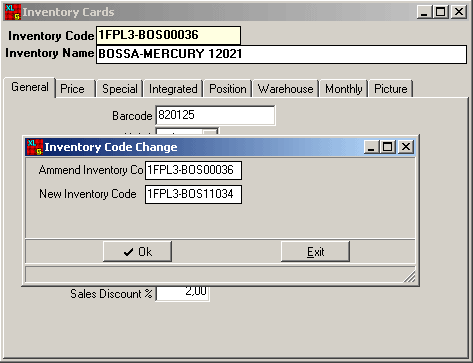
Figure 11 Inventory Code Change
Code of the inventory, which is displayed
to change, appears on the screen as default in the Previous Inventory
Code field.
Enter the new code in the New Inventory Code field.
Code Change operation is completed by clicking on the OK button.
|
All transactions that were processed with the previous code of the inventory are transferred to the new code automatically by the program, when the code of the inventory is changed. |
Information about an inventory defined beforehand
can be copied to another inventory card under a different code.
Inventory to be copied is selected among the inventory list displayed
by either pressing on the F9 key or clicking on the list button in the
Inventory Code field. Inventory Code Copy (SHIFT+F8) is selected
by right clicking after displaying the information concerning selected
inventory. Inventory Code Copy window is displayed on the screen.
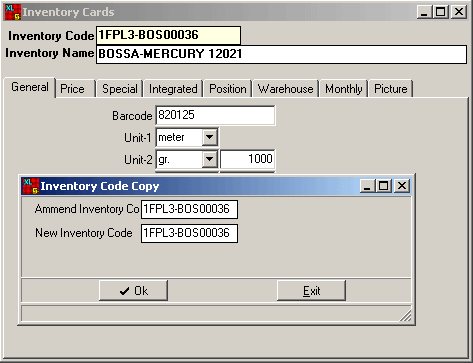
Figure 12 Inventory Code Copy
Code of the inventory to be copied is displayed as default in the
Previous Inventory Code field.
The inventory code that will be created anew is entered into the New Inventory Code field.
Copying operation is realised by clicking
on the OK button.
Displaying Inventory Statement
Inventory statement can be displayed on the inventory card.
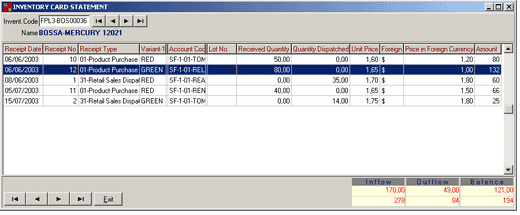
Figure 13 Inventory Card Statement
Inventory, that the statement will be displayed for, is selected on the Inventory Code field by either pressing on the F9 key or clicking on the list button. Inventory statement can be displayed by either clicking on the statement button or pressing on the SHIFT + F4 key combination after inventory details are displayed on the screen.
Account graphic can be taken on the inventory card according to the inventory transactions. In order to execute this operation, the inventory, for which the graphic will be displayed, is selected by pressing on the F9 key or clicking on the list button on the Inventory Code field.
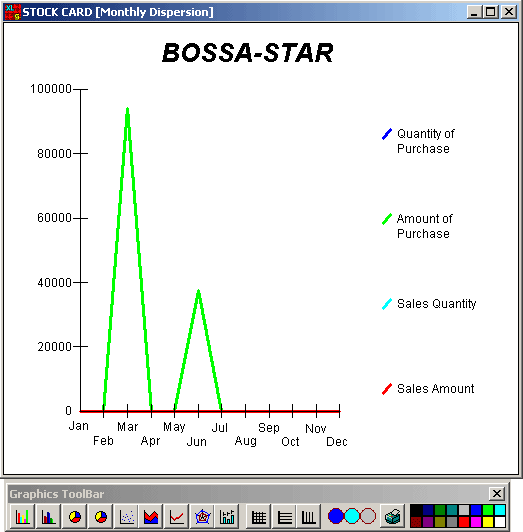
Figure 14 Inventory Card / Monthly Distribution
Statistical Graphics (SHIFT F0) is selected from the menu displayed by right clicking on the inventory card
.