This is the section where dye (business)
recipes are organized. In this part, raw materials to be used in the recipe,
usage ratios, dye to be applied, bleaching and pre-process types are defined.
Also, graphics of processes to be applied in the recipe could also be
included in this screen.
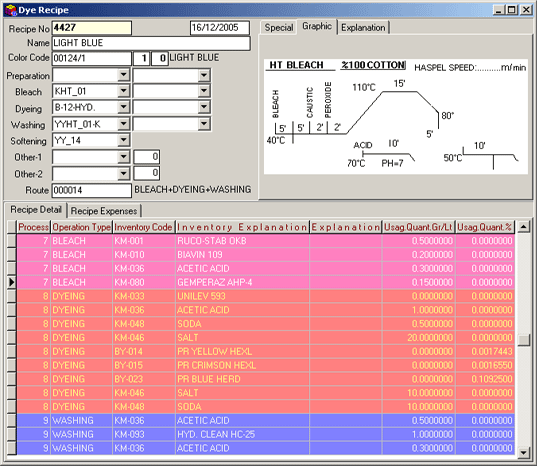 Figure 1 Dye Recipe
The application automatically assigns the
last recipe number and displays it in Recipe No field. Recipe
number could be selected by pressing the F9 key or clicking the list button.
The name of the recipe is displayed next to its number.
System date is displayed automatically
in the Date field. This date could be set to the recipe creation
date. Recipe lists for a given date could be generated.
The name of the created recipe is entered in the Name field.
Laboratory color code that will be included in the recipe is entered in
the Color Code field. Recipe prepared in the laboratory is selected
from the card list displayed after pressing F9 key or clicking the list
button.
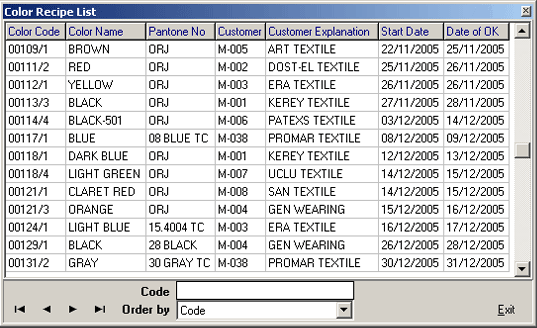
Figure 2 Laboratory Recipe List
As a result of this procedure, color study (raw material and usage ratios) prepared in the laboratory is displayed in the dye recipe.

Color
Table Number field next to color code field, denotes which study
will be in the recipe. 2. color table no field is used in double dying
recipes.
In order
to define the process codes for standard processed such as pre-process,
bleaching, washing, dye, softening, etc. used in the recipe, fields
in Process Default Values in SentezDye parameters are used.
Select the pre-process type from the Pre-Process Cards in the Cards module.
With this selection made, raw materials and their usage ratios defined in
the pre-process card are automatically reflected to the business recipe.
If you click the selection button or left-click the mouse while the cursor
is on Pre-Process, the list of pre-process types are displayed. If the pre-process
is not in the list, select Pre-Process cards from Cards module and introduce
the pre-process to the system. (In order for the newly added Pre-Process
type to be displayed in the recipe, the pre-process type introduction should
be made while the recipe screen is closed)
In the Bleaching field, the bleaching
type defined in the Bleaching Type Cards of the Bleaching module is selected.
According to this selection made, raw material and usage ratios defined
in bleaching type card is displayed in tje business recipe automatically.
If the selection button is clicked or the mouse is left-clicked the list
where bleaching type definitions are displayed. The selection could also
be made from that list. If the Bleaching type to be applied is not in
the list, then a new Bleaching type could be defined in the Bleaching
Type. (In order for the newly added Bleaching type to be displayed in
the recipe, the bleaching type introduction should be made while the recipe
screen is closed)
Chemical raw materials, which are defined in the
"Raw Materials Not to be used in Bleaching" in Pre-Process recipe section
of Pre-Process tab of SentezDye Parameters will not be displayed on the
recipe.
Dyeing field is parametric. If the selection
made in the Dye Type Setting field of recipe Tab of SentezDye
Parameters becomes Laboratory Recipe, then dye information of the laboratory
study is displayed on the recipe automatically. According to the
selection made in this field, raw material and usage rates defined in
the dye type card are displayed in the business recipe automatically.
Left-click to see the dye type explanations on list displayed on the screen.
Selection could be made from that list as well. If the appropriate Dye
Type is not on the list, a new Dye definiton could be entered from Dye
Type Cards of the Cards module. (In order to see the newly defined Dye
type in the recipe, Dye type must be saved while the recipe window is
closed.)
In the Washing field, select the Washing type defined in the Washing
Type Cards of Cards Modole. According to the selection made, raw material
and usage ratios defined in Washing Type Cards is displayed on the business
recipe. If you left-click on the Washing title on the screen, the list
of washing types is displayed and the selectiom could be made from that
list. If the washing type to be applied is not in the list, a new washing
type definition could be entered from Washing Type Cards of the Cards
module. (In order to see the newly defined Washing type in the recipe,
Washing type must be saved while the recipe window is closed.)
Softening type defined in the Softening Type Cards in the Cards module is selected in the Softenin field. According to this selection made, raw material and usage ratios are automatically displayed in the business recipe. If you left-click while the cursor is over softening title, then the list of softening type explanations is displayed. The selection could also be made from this list. If the necessary softening type is not in the list, then a new softening type could be defined in softening type card in the Cards module. (In order to see the newly defined Softening type in the recipe, Softening type must be saved while the recipe window is closed.)
Other-1, Other-2 fields are used to carry out processes different than already existing (pre-process, Bleaching, Dye, Washing and Softening) processes, onto the recipe. Thesee fields could be selected from among process types defined in the Other recipe Definitios in Cards module. Due this selection made, raw material and usage ratios defined in the card are reflected to the business recipe. If the mouse is lieft-clicked while the cursor is on Other-1 and Other-2 titles, the list on which other recipe definitions are displayed on the screen, and the necessary selection could be made. If the recipe definition to be applied is not on the list, a new definition could be entered in other recipe definition field on Cards module.
Enter
the process code of the other recipe definitions in the Process
Code / fields next to Other-1 and Other-2 fields.
Enter the route (work flow) card code of
the processes to be applied in the Work Flow field. Thus, processes
in the route card are included in the recipe. In order to include processes,
press F9 key or the list button to display Work Flow list and select the
processes. If the work flow code is not in the list, press Shift+F9 or
click the card button to add a new work flow code.
Enter the explanation related to the process in the Explanation
field.
Special Tab
Special fields of any necessary type could be created in this section.
|
Special field definitions are entered in the Recipe (Special) field in Parameters module of SentezDye parameters. |
Graphics Tab
If you should double-click in this field, you can select the graphic type
for a given process from the Graphics menu displayed.
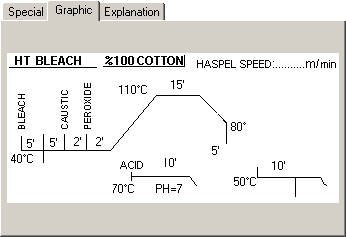
Figure 3 Graphics Tab
Result of automatic settings, graphics are
automatically displayed due to default value definitions and laboratory
color studies.
Explanation Tab
Explanation fields in thie section are parametric and up 10 explanation
field could be defined.
|
Explanation field definitions could be in Recipe (Special) tab in Parameters module of SentezDye parameters. |
Recipe Detail Tab
Select the related process in
the Process field from the list displayed after F9 key is pressed
or the list button is clicked.
Select the related inventory in the Inventory Code field from
the inventory list displayed after F9 key is pressed or the list button
is clicked. If the inventory is not in the list, define a new inventory
by pressing the Shift+F9 keys or clicking the card button.
|
If Recipe Inventory Explanation in Recipe Tab of SentezDye Parameters is selected as "Inventory Name" in the Inventory Explanation field, then the inventory name is displayed in this field. If explanation is selected as "Explanation-1", then information in the Explanation 1 field of the inventory card is displayed in this field. |
In the Usage Ratio and Quantity
fields, the above explanined process, inventory code, usage ratios
and graphics are automatically organized after the automatic calculation.
Any necessary changes could be made after this organization.
After setting recipe color code and the processes to be applied (pre-processes,
bleaching, dyw, washing, etc), Automatic Calculation (Ctrl+F2)
is selected thus, recipe (process code, raw material code, usage ratios
and graphics) is automatically created.
Preparation of Double Dyeing Recipe:
|
In order to be able to prepate Double Dyeing Recipe, 2. Color Table Number next the Color Code must be different than Zero. |
Recipe programs and raw materials to be used in the 2. Pre-Process, 2. Bleaching, 2. Dyeing, 2. Washing field of 2. step in double dyeing recipe are selected. Raw materials to be used according to this selection is displayed on the recipe automatically.
|
In order to be able to have the Print Recipe, Print Process Code in General Tab of SentezDye Parameters must be defined. Thus fields required to have print recipe list will be created on recipe form and lot form. In order to be able to have the print recipe calculation processed, the process code in recipe detail must be the same with the Print Process Code defined in parameter. |
You could define Template Queue number, Pat Quantity and dye rate values in the recipe details and have the calculations.
Recipe Costs Tab In the Expense
Explanation field General costs generated during recipe study are
defined in the Recipe Costs Tab
Cost Explanation field. By clicking the Selection button one of the
cost options is selected. Costs are defined in Recipe
Costs Tab of SentezDye Parameters In the Currency
field, the cost's currency unit is defined. Necessary
foreign currency units could be entered in Currency Rate Parameters section
of SentezDye Parameters If currencies are defined in daily
currencies section of cost module, then rate is displayed in the Rate
field automatically. Manual entry is also accepted. In Currency
Cost field, the foreign currency equivalent of cost is entered. Cost
value is automatically brought to Total Cost field. Those definitions
entered for recipe are reflected to recipe cost table to form the recipe
cost.
MODIFICATIONS Main
Menu
Select Dye recipe from recipe Module to make changes. Press F9 key while
the cursor is on Color No field, or click the list button, and select
the process to make changes from the displayed recipe Cards List. Make
the changes and save them by pressing f5 key or click the Confirm button.
If the changes will be made in the inventory field, move the cursor to
related inventory's row, make the necessary inventory or quantity changes
and save them.
CANCELLATION
To delete the whole business recipe, press F6 key or click the cancel
button while the cursor is on the header information (recipe no, color
code, etc) of the recipe. If a row cancellation on the recipe will take
place, press F6 key or click the cancel button on the row to be deleted.
RECIPE COPY
To copy a recipe, select recipe copy after right-clicking the Mouse or
press Shift+F8 keys and bring recipe copy Form on the screen.
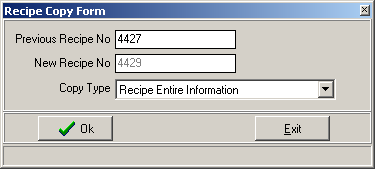 |
Figure 4 Recipe
Copy Form
By clicking the OK button, a copy of the related recipe with the new recipe number is generated. |
AUTOMATIC CALCULATION
MainMenu
This procedure will create recipe detail info (process, raw material,
usage ratios, graphics) defined on the recipe automatically. To do this,
select Automatic Calculation (Ctrl+F2) with mouse right-click after recipe
header info (color code, dye bleaching, pre-process, etc) is defined.
As a result of automatic calculation, information belonging to color code
defined in the recipe (raw material, usage ratios, graphics) is reflected
in the business recipe from the related laboratory recipe. Also regarding
the selected recipe programs (dye, bleaching, pre-process types, etc)
and work flow, information defined in cards (dye, bleaching, pre-process
type card, etc) and recipe default value information (raw material, usage
ratio and graphics) are reflected in the business recipe.
Step by step analysis of automatic calculation
1) Information on the recipe form related with the color code is
gathered.
2) Recipe Program (Dye, bleaching, pre-process type, etc) information
is gathered.
3) Recipe default values defined for work flow process are gathered.
4) According to the dye percentage to be used and if there are
changes in raw-material ratios per process, information from "Recipe Default
Value Definitions-2" field of recipe defaults on Cards Module is gathered.
5) Fixed raw-material and usage information belonging to pre-process
and washing defined in parameters is gathered. By putting together
all this information the detail of the recipe is created.