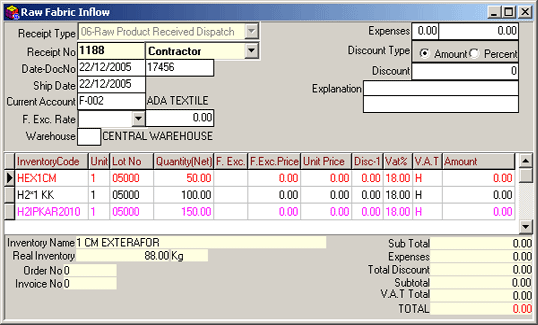
Figure 7 Raw Fabric Entries
In the Receipt No field, when F9 key is pressed or list button is clicked, inventory filter is displayed. The purpose of this filter is to ensure easier and complete access to the required information by applying limitations. Limitations are available for all options on the filter.
For example : If the current account code is entered into the Current Account field,list of the raw fabric entries for the existing current account is displayed on the screen. If the document number of the shipment is entered into the Document no field, Only the raw fabric entries concerning this document number is displayed.
Receipt date and shipment number of the relevant
fabric that was subject to raw fabric entry is entered into the Date/Document
No field. This document number ensures the follow up within the relevant
report and the program. Reports can be obtained by filtering according
to the document number.
The relevant current account code, which is subject to raw fabric entries,
is entered into the Current account field. In this field, selection
can be made by displaying the recorded current accounts list by either
pressing on the F9 key or clicking on the list button. If the relevant
current account is not on the list, a new current account card can be
opened and defined by either pressing on the Shift+F9 key combination
or clicking on the record entry button.
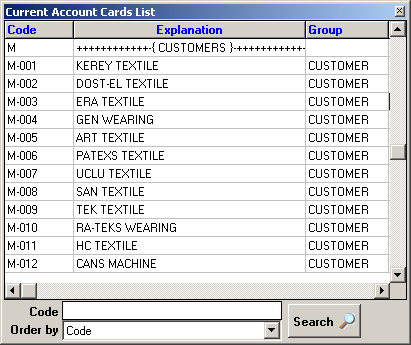
Figure 8: Current Account Cards List
If raw fabric entry transactions are executed
in a foreign exchange currency, foreign exchange currency and rate are
entered into the Foreign Exchange Currency-Rate field.
Warehouse of the relevant fabric can be defined in the Warehouse
field. The relevant warehouse can be selected among the warehouse cards
list displayed by pressing on the F9 key in this field.
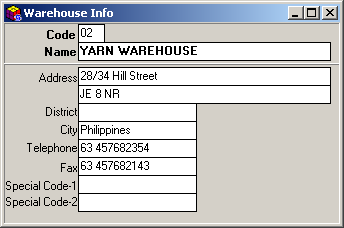 |
Figure 9 Warehouse Cards
If the warehouse is not defined, a New Warehouse can be defined by selecting the Warehouse Cards field from the Warehouse Reports section of the Inventory Module. Alternatively, Warehouse Card can be displayed by pressing on the Shift+F9 key combination. |
Explanations that are required for follow-up
according to the executed raw fabric entry are entered into the Explanation
field.
 |
Special fields such as Warehouse Lot No, Received by and Truck can be defined. Special field definitions can be executed in the Inventory Control Parametres field of the Parametres module of SentezDye Parametres. |
The code that ensures the follow-up of the
relevant inventory (fabric) in the program is entered into the Inventory
Code field. Name of the inventory is entered into the Inventory
Name field at the bottom left corner of the Receipt screen and the
inventory amount at the relevant warehouse is automatically displayed
in the Actual Inventory field (In the example Warehouse
is used as Central Warehouse) . Selection can be made by displaying the
inventory list either by pressing on the F90 key or clicking on the list
button. If the relevant inventory is not in the list, a new inventory
card can be defined by either pressing on the Shift+F9 key combination
or clicking on the entry button.
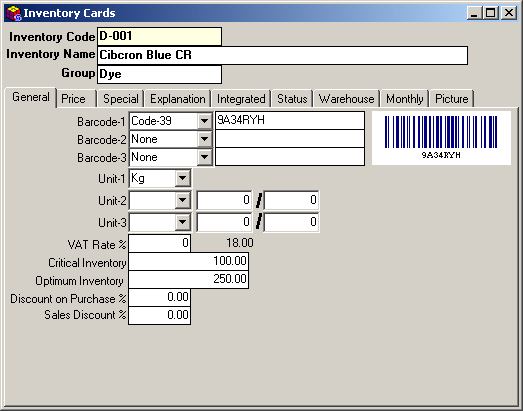
Figure 10 Warehouse Cards
The unit concerning the inventory is entered into the Unit field. In this section, there are three different types of unit fields (Unit-1, Unit-2, Unit-3). Inventory follow-up is executed according to the unit defined in the "Unit-1" field in the relevant reports.
In the Unit-2 and Unit-3 fields, where inventory operations are executed, the unit is defined according to its divisors and multipliers.
When defining the units, it is not necessary to define the units in ascending or descending order.
When the unit definitions are made for the inventories, the unit, on which the inventory will be followed up mainly and used in the inventory reports such as inventory, inventory statement etc. is entered into the Unit-1 field.
For example, If the main follow-up of an inventory that has transactions on three units as kg, metre and gr will be executed on the Kg unit, the "Unit-1" field should be defined as "Kg" at the definition in the inventory card and then the other units should be defined.
|
Values at the Unit list are defined from the Units section of the General Program Parametres of SentezDye Installation program. |
Required explanations are entered into the
Explanation field.
Lot number concerning the fabric (if there is) is entered into the Lot
No field.
The amount used from the raw fabric is displayed in the Used field
automatically. If the fabric amount on the row is more than the used amount,
it is displayed Pink on the screen. If all
the fabric is used, it is displayed Red.
If the fabric is not used at all, it is displayed Black gon the
screen.
Gross amount of the fabric is entered into the Gross Amount field.
Net amount of the fabric is entered into the Net Amount field.
Shelf number of the fabric is entered into the Shelf field. This
is reflected to the Fabric Follow-Up Cards Reports in the Lot operations.
After making all necessary operations, they are saved by either pressing
on the F5 key or clicking on the save button.
 |
When the entered row is defined with the tab key and the next row is displayed, the shipment is automatically saved. |
CHANGE OPERATIONS Main
Menu
Raw Fabric Entries section is selected from the Inventory menu of the
SentezDye Training Follow-Up Program.
When you are in the Receipt No field, the relevant inventory receipt
is selected from the inventory receipts list displayed by either pressing
on the F9 key or clicking on the list button. After making the required
changes on the inventory receipy, it is saved by either pressing on the
F5 key or clicking on the save button. If the change is to be made in
the inventory field, find the row where the inventory is, make the inventory
or amount changes and then save the changes.
CANCEL OPERATIONS
If the whole receipt is to be cancelled, press on the F6 key or click
on the cancel button on the title details of the receipt (Receipt No.,
date, current account etc.)
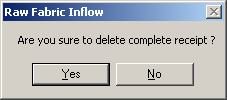 |
Figure 11 Raw Fabric / Cancel Operations
If the question is answered as Yes, the receipt is cancelled completely. |
|
According to the selection in the Enable Change on the Entry shipment subject to Lot Allocation? field, it is either permitted or forbidden to change or cancel the rows used in the Lot allocation rows. |
BARCODE ENTRY
Barcode entry can be executed by using the
barcode entry field or pressing on the CTRL+B key combination after right
clicking the mouse. If the entered barcode number is wrong, Barcode
could not be found message is displayed on the screen.
